Docs Designing the system 12
Getting a change approved
On this page
- Give the reason in Why this change. Write it for the approvers: what, why, and what the plant will notice.
- Clear the problems in the side panel.
Try it in a sandbox (a new or changed transaction needs this). The sandbox is a database of its own: your draft runs there on copies of real records, and nothing live is touched.
- Records it starts with: give each a key (
lot), pick a real one (scan or type its label: it comes with what it refers to, its product, its step), or give one (its data as JSON,"@product"naming another). Only what you may see is copied. Find a record searches every object at once (a lot number, a tool, a name): click a hit to add it, its key made from its object. - Starts as, beside each record you picked: the state its copy starts in. "As it is live" by default; pick another to start it so here (a tool down in the plant starts idle in the sandbox). Only the copy changes: the plant's record stays as it is.
- A server keeps six sandboxes open at a time, two of them yours: close one you no longer need (they also close by themselves after a quarter of an hour unused). Scenario runs take turns, a few at a time; when many are queued, the fitness test asks you to try again in a minute.
- Saved selection: keep the records under a name, your own, on any change's sandbox. Save as… names it (a date and time to begin with), Save keeps edits over it, Rename… and Delete do what they say; pick another to switch to it (asked first if what is here is not saved). The list shows each one's records and when it was saved; "Edited since saved" says it has changed.
- Every JSON field here (a given record's data, Where, an edit's or a new record's data, a service's input, a plan's values, a transaction's rows) is a code editor: coloured, a syntax error marked on its line, and a field its object does not have named, with the ones it has.
- Open the sandbox, then Run a step: a transaction (its inputs pick among the sandbox's records), a record's action, an edit, a new record, a service or a screen, As anyone: their roles decide, as they will live. Each step says whether it ran or was refused, and what moved. Start again gives fresh copies.
- What a route needs, before you open it: pick a route, and it lists every record walking it to the end takes, in order: first the traveler itself (a lot of the kind the route's start takes: its route, its product), then a tool for each step's process (inside its sub routes too), what its transactions must be given, the lot's own device. Ticked when one you chose gives it; else live ones to add with a click (for the traveler, those on their way along the route first), or Add all required records. The traveler may be made instead: it names the transaction that makes one (Receive lot, Start lot), to run as a step once the sandbox is open.
- Follow a route: pick a Traveler, a record on a route here (one a step made too: the lot your receiving transaction just made). You see where it is and its route's map (click a sub flow to open it). Each transaction its step offers is a button that fills the step in, the traveler already its input; under each record input, the step suggests what it allows (a tool of its process), each tried as the person: ticked if it would be taken, crossed with the reason if not (the tool is down). A transaction picked under Which gets the followed traveler too; with no traveler given, it asks for one first rather than listing every record to guess among, and when none can be tried (the person in As may not run it) it says why, once. A plan waiting on it shows its question: a button per choice, or Fill it in…. You still fill the form in and press Run yourself; after each step it moves on.
- Keep it as a scenario of a transaction of the change, Named what it shows. The scenario is kept with every version of the transaction, and the fitness test runs it again, on fresh copies of the records as they are then. The transaction's Scenarios tab lists them, with their last result and open in the sandbox to run one again.
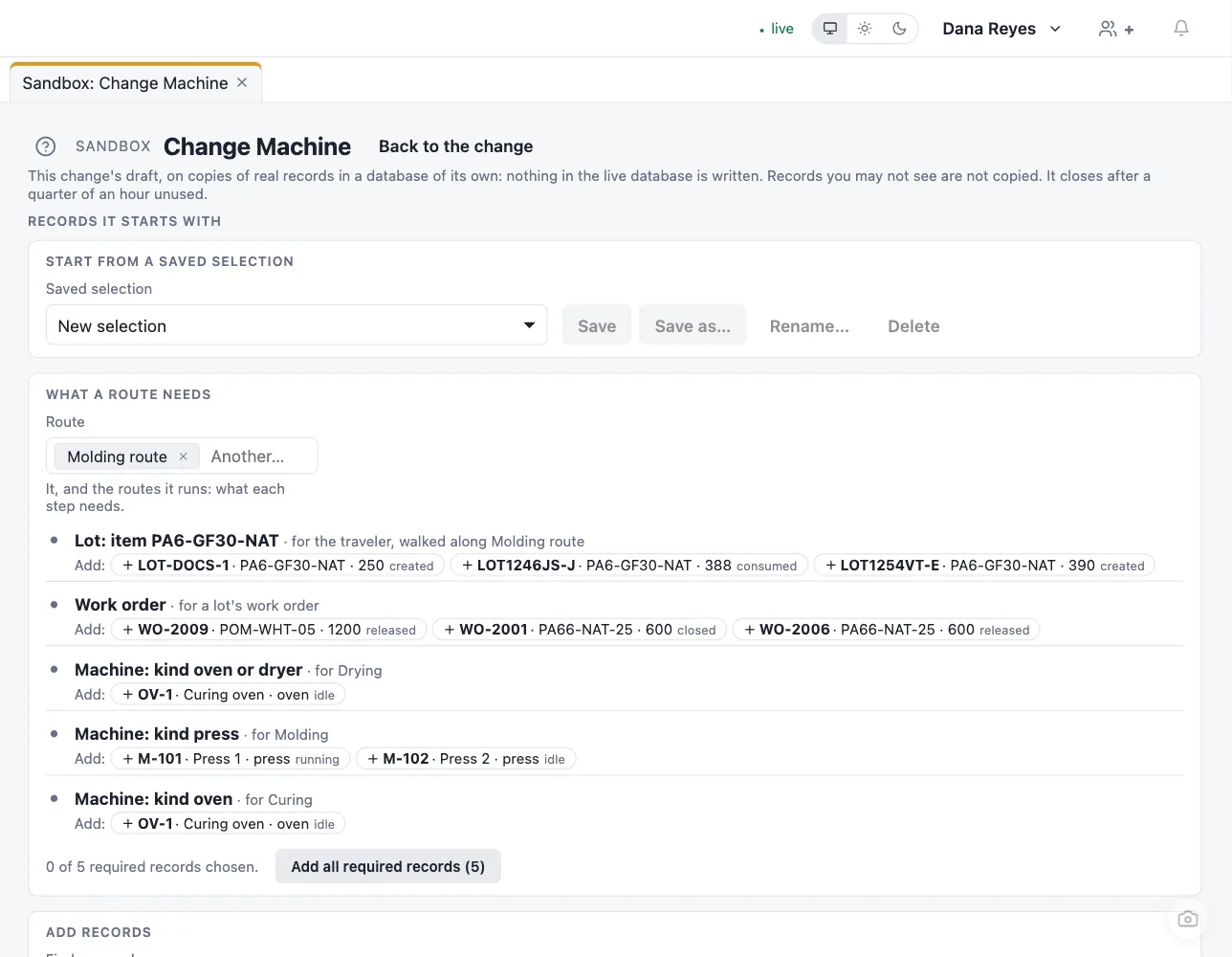
A change's sandbox: what walking a route takes, picked from real records, then each step run on copies. - Records it starts with: give each a key (
- Run the fitness test. It checks exactly what you will submit and gives reviewers the evidence:
- fails on problems, scripts that do not compile or call what they will not have, new or changed scripts without test cases, failing test cases, and new or changed transactions without a scenario or with one that does not do what it expects;
- warns about existing records the draft would no longer let be saved (a new required field, a state removed), with how many;
- lists access changes per role and state (
lot · operator · on_hold: +archive, qty w→r). Each finding that has a place is a link: click it and the change's first window opens where it is put right (the object's Fields tab with the field's row tinted and its first box focused; the script on Rules, or the service's Script tab, at the line; the script's Test cases; the transaction's Scenarios). Under a finding, a line says how to fix that kind of thing: a script without test cases has them under the script (a name, what it runs on, what it expects; a dry run can be saved as one); records that could no longer be saved need the field kept optional, required only where it applies (Required when, on Layout), or those records put right first; a failing scenario has Open it in the sandbox, to run it again step by step. Fix with the copilot, beside a finding of a failing or warning check, opens the copilot on that design with the finding in its box: read it, change it if you like, and Send. The copilot drafts the fix as you; it never submits, and you run the fitness test again.
- Submit for review. The content is frozen at this point and identified by its hash; what is approved is exactly what was reviewed. If it needs changes later, it comes back to Design.
- Review. A reviewer who is not you reads it, then Pass review or Ask for changes (with a note, back to you). A review or an approval opens on Changes: every difference from the published version, marked new, changed or removed, with the published and the proposed versions line by line (red taken out, green put in), and Open Fields, Open Layout… to see it in place. The tabs carry how many differences each holds, and inside them new and changed fields, policies and layout cards are highlighted. You see the same while designing. A reviewer who represents a department cannot also approve for that department, and is told so first.
Approval. Each department in Will need approval from approves or rejects through one of its representatives (rejecting, or asking for changes, opens a box for the reason: it is required, and the author and the audit trail read it) (Approve for Production, Reject for Quality). One rejection ends the change: it is marked rejected, and a new change starts from the published version.
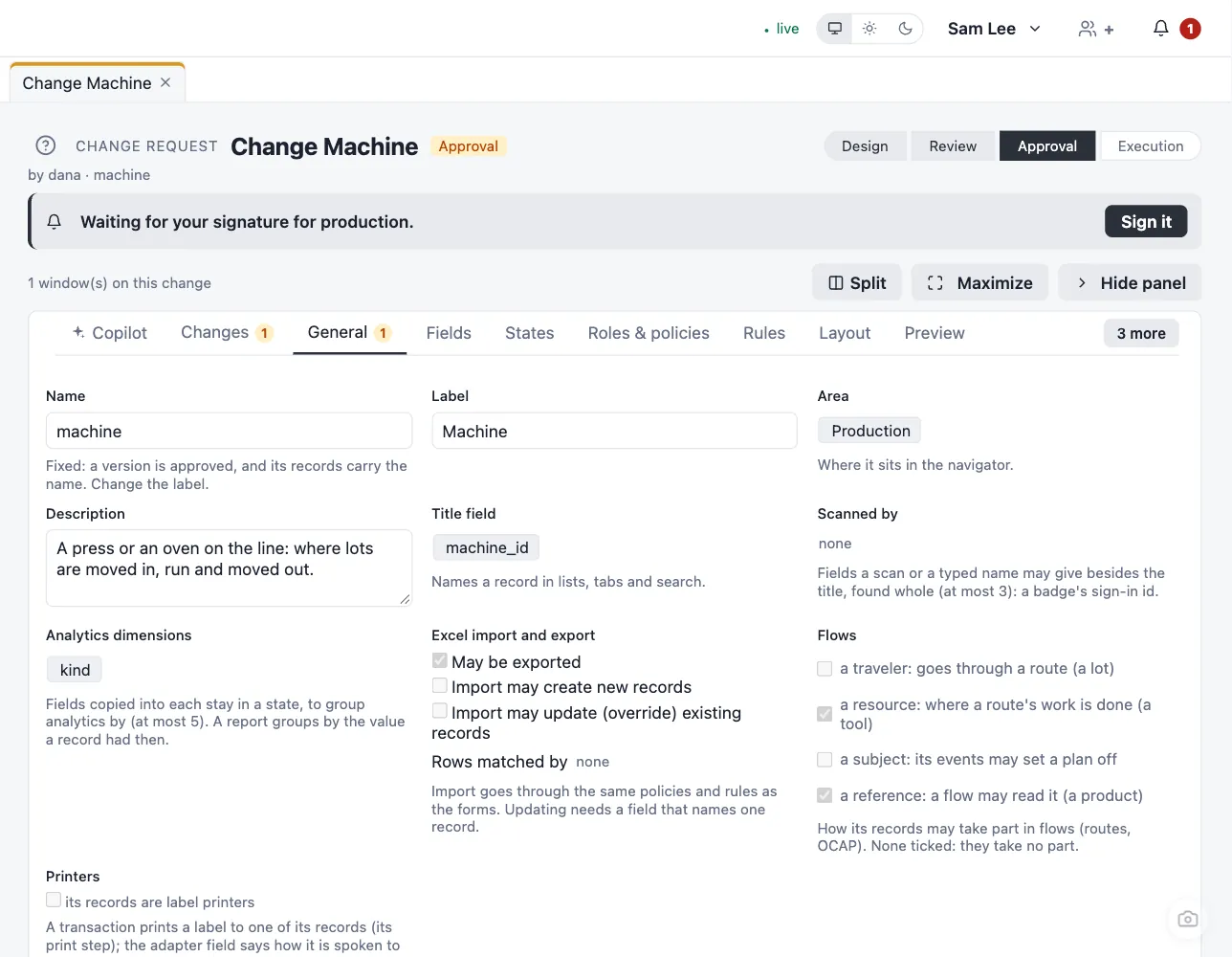
A change at Approval, as an approver sees it: waiting for their signature, for their department. 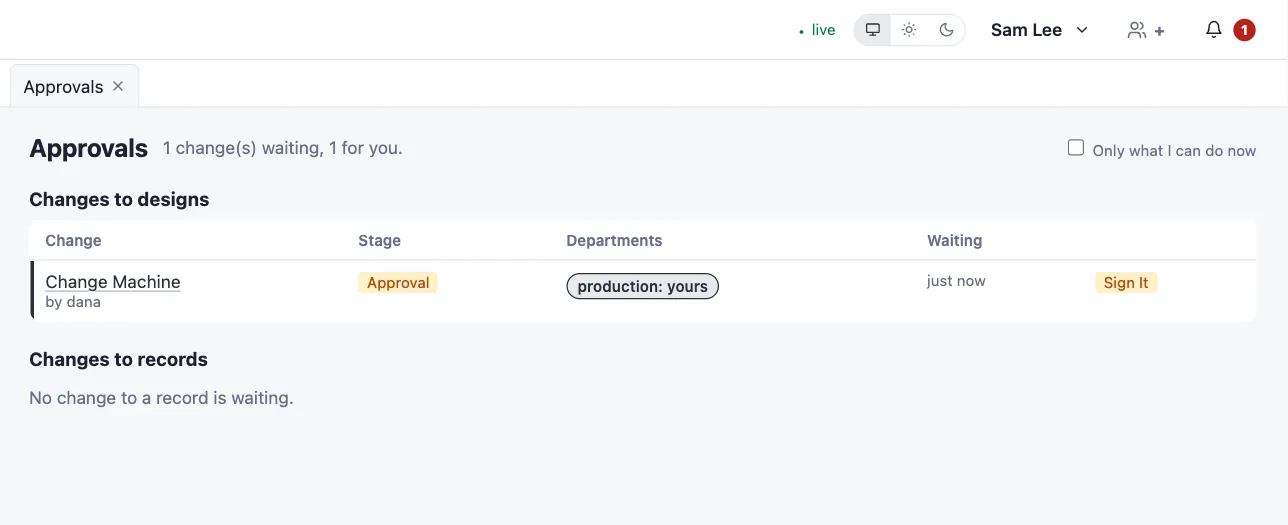
Approvals: every change waiting, its stage, and which departments still sign, yours marked. - Approved. When every department has approved, the change is approved: nothing of it is live yet. It waits for its executor, the person you named when you first submitted it (the submit asks Who executes it?, offering those who hold the designer's executor role; you may name yourself). It is in their inbox under To execute or verify and on Approvals (execute it), and they are told by mail. On the change itself, a line under its title says it waits for them, with Execute it, which takes them to the Execute button in the side panel (below the editor on a laptop); the same line asks a reviewer, an approver or the one who verifies it for what is theirs. While it waits, you (or a co-designer) may name someone else in its Execution box (Change who executes it…), or withdraw it. Your organization may have changes go live at the last signature instead (People & departments, Approvals tab, Execution): then there is no executor, and the next step happens as the last approver signs. Planned, where the plant has a blackout. Your organization may set a blackout: whole days and each day's hours when nothing goes live (for example Friday, Saturday and Sunday, and every day from 16:00 to 07:00), on the plant's clock. Then the executor first plans when the change goes live, in its Execution box: a date and a time (Now for at once), and Plan it. Execute opens at that moment, not before; Plan it again… moves it. A moment inside the blackout asks why it cannot wait (required), and Plan it, asking an exception asks an approver of a department the change touches, or of the governance department, to approve it: never its designers, nor the executor. They find it in their inbox and on Approvals (decide it), and on the change a line under its title says so, with Decide the exception: Approve the exception (sign) (a signature meaning Approved exception) or Refuse… (with a reason; the executor is told, and plans it again). Approved, Execute opens at the planned moment, for that stretch of the blackout only. An emergency planned in the blackout needs the reason, but no exception: its review afterwards answers for it. The plan, the reason and who approved are kept in the audit trail.
- Execution. The executor opens the change, when the plant is ready for it (at its planned moment, where there is a blackout), and presses Execute (it asks first). The platform publishes the change in one step: new versions of the objects, scripts, services and connections, live everywhere with no restart. Open forms pick up the new version. At that moment the change is checked once more against what is live now: if something it relies on was changed or retired while it waited (a field its transaction writes, an object its screen shows), or what it touches came to answer to a department that never signed it, it does not go live. It is marked failed, saying what changed; send it back to design, fix it and submit again.
Verification. Executed, the change is the executor's to check. It stays in their inbox (Executed: verify it works, or report a problem) until they do. Open what it changed and use it as the plant does, then, in the change's Execution box:
- It works (sign): your signature, meaning Verified, kept with your name and the time. The change is closed.
- Report a problem…: say what goes wrong, with a picture. The picture is of the page you are on, so the best place to report from is the page that goes wrong: press the camera button at its lower right corner and pick Report a problem. Draw on the picture (pen, box, arrow, numbers), say what is wrong, and send it. It goes to the designers at once as a request for change, with your picture, and the change's designers are told. The change stays live and is offered for rolling back (Roll back this change, one approval); the fix is a new change.
Not verified within the hours your organization sets (24 unless it says otherwise), you are reminded in your inbox and by mail, and again each day; the change is marked overdue on its page and on Approvals.


Who is asked. Everything a change touches is in its footprint, whether or not the designer has a tab for it (an object's part in flows, a setting added by a suite): each element answers to its stewards, a script a flow runs at a step answers to that flow's stewards, and an element nobody stewards answers to the governance department, also when the rest of the change has stewards.
Withdraw abandons a change at any time before execution.
When the plant cannot wait (a line down, someone who must have access now), Submit as an emergency… instead of Submit for review. It asks why it cannot wait; that is required, and the approver reads it. The same problems and fitness test must pass. It skips review: the first approver of any department in Will need approval from who signs it (never you) approves it at once (where changes go live at the last signature, it is live then; otherwise its executor executes it, and its review afterwards is due from then). It must then be reviewed afterwards, within the days your organization sets (3 unless it says otherwise). A reviewer who neither wrote nor signed it passes it or flags it, then one approver of each department confirms it or flags it, signing as for an approval. Until then it carries an emergency badge, waits on Approvals and in the inbox of whoever may act on it, and past its due date it is marked overdue and written to the event log. A flagged emergency stays live: a designer rolls it back from its page (Roll back this change), and one approval executes the rollback. Emergencies in the designer's change list shows them all. Your organization may forbid emergencies, or set the days, on People & departments' Approvals tab; then the button is not offered.
While the plant is being set up (a new installation, before there is anyone to review your work), the designer says Setup is open in a banner, and a change in design offers Execute now (setup). The same problems and fitness test must pass; then you sign, and the change goes live at once, without review or approval. It is marked setup in the change list (the Setup & signed alone filter lists them all, for the validation that follows) and kept in the audit trail with your name and signature. Submit for review still works as usual. IT opens setup for a new installation (on a plant's own, empty installation, naming you its first administrator from the server opens it: you hold the designer's roles and sign-in administration, and add everyone else); it is ended on People & departments' Approvals tab (clear Setup is open), which you execute the same way, once someone besides the designers can review and every department has its approvers (the change says what is still missing). From then on every change is reviewed and approved. Opening setup again later is a change your governance department approves.
A design is in one open change at a time: starting a change on it, bringing it into one, or saving it into one is refused while another open change holds it, naming that change and its author. Finish or withdraw that one, or make your edit there.
Approvals (the navigator's Design group, or search "approvals", "pending", "sign") lists every change waiting for review, approval, execution or verification, live: for each, its departments, approved ✓ (by whom), rejected ✗, or pending at which step and for whom; an approved change execute: <who>, an executed one verify: <who> (and overdue past its hours). What you can review or sign now is marked and comes first; Only what I can do now hides the rest.
Approval flows: who approves a record change, step by step
A change to a record that waits (section 4, the Stewards tab) is approved by the stewards of what it changes, each department in its steps, all in parallel. When the order matters, or who signs depends on who asks, design an approval flow: a flow template of kind approval (the Flow designer, Kind) whose one subject is the object (the object opts in as a subject on its General tab), named on the object's Stewards tab (Who approves follows an approval flow). Its palette: Start, Approval step, Auto decision, End.
- An approval step is signed by the requester's department (their home one, and its steps in
order), the one above it (Climbs: one or more levels, the top of its line, every department up to
the top in turn, or that department, or the first above it where someone else signs: theirs, unless
nobody but the requester could sign a step there, since nobody signs their own), the department of the person a field names (a host), a fixed department (one step of it
by its label, or all), a group (any member), whoever holds a role of the object, named people, the
person a field names, or each person some records about it name (a loan's co-makers: Records of the
co-maker object, Found where its loan is this one,
{"loan": {"context": "loan.id"}}, The field naming the person): one step each, in the order they were made, so a loan with three co-makers waits for three signatures. It goes on once every step of it is signed; a rejection at any step rejects the change. A signature means is what the signer signs to; Mail when it waits picks the layout its people are told through. - Escalates when nobody has signed in time: after so many hours, the department above (top management, at the top of a line) or whom you name may sign too; told by mail, in the audit trail.
- An auto decision branches on the record as asked (
{"context": "pass.area"}), the request (request.op,request.why,request.by) and the requester (requester.department,requester.chain). - An end with the outcome
approvedapplies the change; any other end rejects it, saying why ("refused: a pass is at most 30 days"). A flow that reaches an end without a step decides at once.
The request's page draws the flow's way: the steps passed, where it stands, who may sign and who did, an escalation. The people involved see it in their bell and on Approvals as any request. No scenario is asked of an approval flow: it is proved through the record changes it decides.
Requests for change: a picture of the page, asked of the designers
Someone on the floor sees something wrong or missing on a page: a counter that shows yesterday, a field that should remember the last machine. They show it rather than describe it.
- The button. A faint camera button sits at the lower right corner of every page (screens, transactions, records, lists, the designer), and comes to full strength under the pointer or a finger. Pressed, it takes a picture of the window as they see it. What must not leave never does: a sensitive value is drawn as Hidden: sensitive (even one they had shown), a password as nothing.
- Drawing on it. Pen, Box, Arrow and Number (a numbered marker where you press: 1, 2, 3…, so your words can say "1: this counter, 2: that field"), with the mouse, a pen or a finger (a tablet, a phone); Step back (or Ctrl+Z, ⌘Z on a Mac), Start again. Then What it shows: what is wrong, and what they would like instead.
- Ask for a change: a title, then Ask for a change. It waits for their own line first: their department's approvers, in its steps, or the department above where nobody but them signs (a department's head asks; the department above approves). The approver sees the picture on the request's page, and signs or rejects it with why. Approved, it is a Request for change record, open, with its picture, words, the page it came from and the version of that design then live.
- Mail it: to people found by name (at their address in People & departments) and, where the plant allows, to typed addresses; the picture attached, a reply going to the sender. Ten an hour at most, twenty addresses a message; each sent is in the audit trail.
- The designers'. On Approvals, Requests for change lists the open ones and those in work, each with its picture small, who asked, the page (a link), the words. Take to work puts it into a change: a new one of the page's design (the screen, the transaction, the object of a record or a list; an open change of it is continued), or one of your own in design. The change's page shows Asked for from a page with the picture, and the copilot reads it there too. Reject asks why; whoever asked is told. When the change is executed, the request is done; withdrawn or rejected, it is open again, for another change.
- Told each step. The person who asked sees each step in their bell (What happened): approved by their line, taken to work and in which change, rejected and why, done. Dismiss takes one away.
- Who has the button is People & departments', on the Approvals tab: The snapshot button, for everyone (as it comes), for the people, departments and groups you name, or for nobody; its pictures mailed to anyone, to people of the plant only, or not at all. Like everything there, a change governance approves.
- Request for change is a built-in object (the navigator's Organization area): add fields, screens or policies to it as to any object; its approval flow, Request for change: the requester's line, is yours to change in the Flow designer (a second step for Quality, a condition on the page's kind).
People & departments, and approval steps
Who approves is set under People & departments (the navigator's Design group, or search "people", "roles", "departments"): its page shows the organization as it is live, read-only (who holds what, each department's steps), and Change people & departments starts a change whose draft is it as it is, or Open the change in progress goes to the one already open (only one at a time). Another open change may hold it too, as part of something else (the roles a suite's designs or a model file would give): then no change starts here, and you are told which change holds it, its stage and its author. Once that one is executed or withdrawn, a change can start here.

- Departments: each one's name, members and approval, in order: its steps (e.g. IT: 1.
Specialist, 2. Manager), each with the people who may sign it. The steps are signed one after the
other, each by a different person, never the change's author or reviewer. Departments sign in
parallel with each other. + step adds one; Governance names the department that approves what
nobody else stewards, new departments and new people. Its Email (a mailbox the department reads,
engineering@plant.example) is told by mail when a change to a record waits for the department: what
waits, the fields it changes (by name, never their values), why, who asked, and the link to sign it.
Reports to names the department above it: the plant's hierarchy, which an approval flow climbs
(the requester's department, the one above, the top; section 12) and an
escalation goes up; a circle of reporting lines is refused. Export and Import at the top of the tab
move the org chart as a CSV that Excel opens (
id, name, reports_to, email, members, steps; steps asSpecialist: ivan; Manager: ines): each row says what that department is, new ones are added (a name is needed), the others take the row's columns, departments not in the file stay as they are, and the people it names must be there already (the People tab, or its import first). The whole organization travels as JSON too: the JSON tab's Download JSON and Upload JSON, then Apply JSON. - Groups: people from any departments, a team of power engineers from Engineering and Quality. The tab lists them a window at a time, with a box to find one by its name, id or a member; Edit opens one in a panel: its name, an Email told when a change waits for it, and its Members, picked from everyone. Give a group roles on Roles; name it in an object's Who approves follows a value of the record and it approves those records' changes, any one member signing (never the one who asked). A group an object's approval still names cannot be removed: the check says which object.
- People: everyone who signs in, each by their sign-in id as your directory or identity provider knows
them (lower case letters, digits,
_and-: an employee number such as104523works, a dot does not). Untick Active instead of deleting someone. Each person also has a Person record (the built-in Person object), made, renamed and made inactive as this change executes: add what the plant keeps about people (a badge, a shift, skills) to Person in the designer. Their sign-in id, name and whether active stay here: Person shows them read only. Their Email is where the platform tells them what waits for their signature; their Home department (asked only of someone in several) is where an approval flow that follows the requester's department starts. Both travel in the CSV too (email,homecolumns). - Find people first: a plant has thousands, so the People tab lists nobody until you type a few letters of a name, sign-in id or department, except the people your change adds or changes, which are always shown first. The list scrolls with the tab (the window itself never scrolls) and shows fifteen at a time: scroll to the end of them (or press show more) for the next fifteen, however many match. A department with many members shows how many, and typing in its members box finds one (✕ removes them) or someone to add. On the demo and test instances everyone is listed at once.
- Add, Import, Export sit at the top of the People tab. Export downloads everyone as a CSV that Excel opens (id, name, active, departments: their ids, separated by spaces). Import reads one back, edited, or saved from HR's spreadsheet (comma, semicolon or tab): each row says what that person is. New ids are added (a name is needed), the others take the row's name, active (yes or no) and departments. An empty name or active cell keeps what is there; an empty departments cell means none. People not in the file stay as they are: nobody leaves by being left out. Before anything changes, it shows what the file would do, and which rows it cannot take and why. It goes into this change only, approved like any other edit.
- People are chosen by typing a few letters of their name in a box (Enter, or a click, adds; ✕ on a chip removes).
- Moving someone between departments moves their roles: they lose the old department's and gain the new one's. What this changes for people lists that, person by person; Keep them gives a lost role to the person directly. The fitness test lists it too, for the reviewers and approvers.
- Roles: who holds each role each object declares (lot operator: Production), and the designer's and the query console's roles. Two ways in, for any number of objects: By object (search an object, a role, or who holds one; objects fold to one line, 30 at a time, more as you scroll, the ones this change touches first) and By group or person (pick who: everything they hold, directly and through their departments; ✕ takes one away, Give another role searches every object's roles). A change here is approved by that object's stewards. Some roles are never left to nobody: a designer (and someone else to review), a Sign-in administrator and a Database administrator. A change that takes the last one away says so and cannot be submitted; on an installation that has none, the next change to People & departments must name them, and the server says so each time it starts.
- Spaces: each team's corner of the designer, when several teams design. The MES team keeps lots, routes and the shop floor's transactions in an MES space; Operations keeps its own objects, screens and menus in an Operations space; neither changes the other's. Each space has a Name, what it is for, who it is Designed by (people, departments or groups), who it is Reviewed also by (its designers review its changes too, never their own), and the departments that steward what is made in it. Every design names its space (the Space line above its tabs in a change); one naming none is shared, the installation's, and only those with the Designer's own designer role (Roles) change it, People & departments included. A space's designers start, bring in, save and submit only their space's designs; another team's, or a shared one, is refused, naming whose it is: ask that team with Request a change (the camera button at the top of its page). Everyone who designs still reads every space: an Operations screen may show MES's lots. Moving a design to another space is approved by both spaces' stewards. A space that still holds designs cannot be removed: move them first. Governance and each space's stewards approve spaces; with none, everything is shared and every designer designs everything, as before.
- Approvals: standing approvers, departments that approve every change to a kind of element, whoever stewards it. Tick IT for connections and services, and every integration change goes to IT too.
- Mail (on the Approvals tab): which mail layout the platform sends through when a change to a record waits, when it is decided (to whoever asked), and when a design change waits for its reviewers or approvers or is decided (to its author); the platform's own words when none is named. An object's approval may name its own for its records (section 13, Mail layouts).
- Reads every record (on the Approvals tab): people and groups who may read every object's records, those designed later and a suite's included, every field but one a policy hides. It writes nothing and takes no action; for IT building services, or an auditor. Governance approves it, and What this changes for people shows who gains it. It never opens a record reserved to a certification they do not hold.
- Certifications: the certifications the plant recognizes (ITAR, a cleanroom grade, a customer's
clearance), each an id designs name (
itar) and a name people read. An object may reserve records to one (its Roles & policies tab). One an object requires cannot be removed here. Governance approves the list. Who holds one is kept as Certification records (Organization, in the navigator): the person, which certification, valid from and until, a certificate number; Revoke and Reinstate. It counts while it is active and in date, on the plant's calendar; revoked or past its date, the records it opened are gone from that person's pages at once. The designers keep them at first; the plant gives Certification's editor role to whoever records them, or lets a training suite or its learning system write them through the HTTP API. - Approval level (on the Approvals tab): how much approval a change needs. Full (the default): a reviewer, then each department it touches. One approval: no review; the first signature by an approver of a department it touches (never its designer) executes it, and the change page's button says Submit for approval. None: the designer signs their own change and it executes (Execute (sign)), marked signed alone (the Setup & signed alone filter of the change list shows them). A plant that answers to regulators keeps Full. At One, someone besides each designer must approve for the governance department, or nobody could approve a change to People & departments; the change says so before you can save it. Going back to Full needs someone besides the designers to review.
- Execution (on the Approvals tab): whether an approved change waits for the executor named at its submission to press Execute, then verify it (the default), or goes live at the last signature; and after how many hours an unverified change reminds its executor (24 when empty). Executing by hand needs someone to hold the executor role (Roles → Designer: executor). A change to it is approved by governance.
- Blackout (on the Approvals tab, by hand only): the whole days and each day's hours (from and to; from 16:00 to 07:00 runs past midnight) when no change is executed, on the plant's clock (Formats: time zone). With one, every approved change is planned by its executor before Execute, and a plan inside the blackout needs a reason and an exception signed by an approver (see Getting a change approved). Leave it empty for none.
- Setup and Emergency changes (on the Approvals tab): whether setup is open (a designer's change executes on their signature; clear it to end setup, see Getting a change approved), whether emergencies are allowed, and within how many days one is reviewed afterwards. A change to either is approved by governance; while setup is open, ending it executes on your signature like any other change.
Adding IT to the approval flow: add the IT department with its people and steps (Departments, People), give them the designer's reviewer role so they can see what they approve (Roles → Designer), then either tick IT as a standing approver for the kinds it answers for (Approvals), or name IT as a steward on the elements it answers for (their Stewards tabs).
While approving, the side panel shows each department's steps: which are signed, by whom, and whose turn it is; the button says which step you sign ("Approve for IT as Manager (2 of 2) (sign)").
Dates, times and numbers (the Formats tab): how the plant writes them on every page: the date
format (DD.MM.YYYY, MM/DD/YYYY, …), 24 or 12 hours, the locale for numbers (1.250,5), the week's
first day and the plant's clock (time zone). It shows how a moment, a number and a date will read.
Approved by governance; pages follow when next opened. Nothing stored changes. Scanners, on the same
tab: what the plant's barcode scanners wrap around every read, as set on the devices (a prefix, a
suffix, whether they send AIM identifiers such as ]C1): taken off before any field reads it, and what
tells a scan from typing. A label's own prefix is each transaction's (its Scanning tab).
How the pages look (the Theme tab): Light or dark: each person chooses (the default), or always light, or always dark, for everyone (then nobody is offered a choice). Record, transaction and screen pages: with their tabs and the hints under the fields (the default), or compact, the fields alone; anyone shows them again on the page itself (Show details), for as long as they work. The name in the top bar (the app's name, "OpenCore MES" when empty) and the label beside it (the site, plant or line). The colours of the top bar (its background and its text), of the accent and of the ok, warn and danger tones, for light and dark, each with a colour picker; empty is the default (a dark top bar left empty takes the light one's). Everything in the top bar (its buttons, search, badges) is drawn from its two colours; give the background alone and its text is white or dark, whichever stands out on it. A preview shows them on a top bar, a button, the tones and a link. The colours are the plant's choice: nothing checks how they read, except the top bar's own status words (live, a count waiting), which are adjusted to read on its background. Approved by governance; pages follow when next opened. A desktop may override it for one computer, a dark room's included (A desktop's own page).
How long data is kept (the Retention tab): a period per kind of data, in days (365 a year), years
("6y") or forever; empty keeps the default shown. Archived records and the audit trail are never
removed by the platform: their period is what the plant keeps (the audit trail at least six years, and as
long as the records), and Data retention counts what is past it. Everything else past its period is
removed every six hours. A period too short is named and the change cannot be submitted. Approved by
governance.
Data retention (navigator, Design; for privacy officers, given on the Roles tab under Privacy): the periods in force, what would go at the next run, the last runs, and Run the purge now. Erase a person's data from a record: choose the object, find the record (its title, a personal field's value, or its id), Erase, and give the request's reference. Only fields marked erasable are erased; the record and its history stay.
Database (navigator, Design; for database administrators, given on the Roles tab under Database): what
people and systems ask of the platform, what it asks of the database, and how long each takes. Calls: every
web service, transaction and named query by its own name, however it was called (a page, the web, a route, a
screen's table, a reference's choices), or the platform's own services (Which calls), over the same hours,
slowest in all first: calls, mean, the time 95% of them stayed within, slowest, how many were refused and
failed, and where they came from. Click one for each way in apart (Move in at the screen, and Move in from the
ERP), its last 48 hours an hour a bar, who called (a token by its name), why it was refused (by code: never
what was sent) and the statements it sent, each one click from its plan. Statements: every statement it sent over the
last hour, day, week or two, slowest in all first, with its calls, mean and slowest time, rows, and the
service it mostly came from; find one by any word, sort by any column, and click it for its full text (with
$1 where values go: values are never kept), who sent it, and its plan (nothing is run). Indexes:
every index with its size and how often it is used (one never used costs every write and serves nothing);
Tables: rows, size, and how they are read. Ask the AI for indexes (when an AI is set up): it reads
the slowest statements and their plans and proposes indexes, each with why and, with HypoPG installed, its
statements' plan cost now and with it. Build it builds one at once, without stopping writes, after you
say why; Effect later shows its statements' time before and since; the bin drops one built here (never
the platform's own). Each build and drop is in the audit trail.
Errors, near the top of the Database area: what failed on the server in a way nothing meant to refuse (a database error, a statement that waited too long, a fault in the platform), the latest first, the same error in the same place on one line with how many times, how many people met it and when. Whoever met one read "Something went wrong on the server (error E-1a2b3c4d)…" instead of a reason: type that reference in Find an error to find theirs, and click the line for each time it happened (reference, when, which server, from where, who) and the server's stack. What they were saving is never kept. The integration monitor's copilot finds one by its reference too. Errors are kept 90 days unless People & departments → Retention says otherwise.
A page that breaks in someone's browser is here too, from a browser, under the page it happened on (browser
/_t/move_in/?): the browser reports it by itself, with who was signed in, where in the page (the transaction and
the record it was run on, the record, the screen or the change open) and which browser, so an operator's "the
screen froze" is a line here with its reference, not a mystery. Nothing typed into the page is sent. A page in a
loop, or a bug every operator meets at once, is not a flood: each page reports a kind once a minute, the server
keeps a few of a kind and counts the rest.
This server, at the top of the Database area: Restart this server and Stop this server, for the server you are on (each of several is restarted on its own). Each asks first, saying how much is under way. From that moment nothing new can be saved on that server: every page on it shows a yellow banner ("This server is restarting in a moment…"), and a save is refused, keeping what was typed, to be sent again once the server is back. What was already under way (a save, a transaction, a copilot's answer, a report being generated) finishes; the panel lists it as it empties, then confirms: "Drained in 4.2 s: nothing was left running.", or, after a minute, what was still running and was cut. A restart is back by itself within seconds, and the pages with it; a stopped server stays stopped until someone starts it again. A deploy or an upgrade restarts the server the same way. Each Restart and Stop is in the audit trail.
Tamper evidence (the Integrity tab, its first line): whether the audit trail is kept in hash chains and every record sealed. It is off until your plant turns it on, through this change like any other. Off, every change is still written to the audit trail with who, what and when; but an entry or a record changed in the database itself is not found, and the Data integrity page has nothing to check and says so. On, each entry is linked to the one before it and each record carries a seal, so such a change is found, named and closed under signature: a plant under 21 CFR Part 11 or Annex 11 turns it on. Turning it on seals every record as it stands when the change executes (a large plant: allow it time); turning it off is itself said in the trail.
Where integrity reports go (the Integrity tab): the object your plant keeps its non-conformance reports in (a deviation, say), and which of its fields takes each part of a report (what happened, why, the decision, the action, the finding); a required field no part fills gets the same value every time (a severity). Then each report also raises a record there (one for a report that closes several findings, its finding part naming each), as the reviewer who closed it, through its own policies and rules. None: the reports stay on the Data integrity page and in the audit trail. Approved by governance.
Who acknowledges a finding (the Integrity tab, Acknowledgement): every finding must be acknowledged by someone responsible. Acknowledged first by names a department (the governance department if you leave it); its members find each new finding in their inbox and by mail, and any of them, or an integrity reviewer, acknowledges it. Hours before it climbs (4 if you leave it): nobody has acknowledged it that long, so the department that one reports to (Departments, Reports to) is asked as well, then the next one up after as long again, up to the top of the line, then the governance department, where it stays. Mail layout: a mail layout about a finding (the Layouts tab) for what they are told; else the platform's own words. A message never shows a field's value, only what was changed, where, when and by which database user. Approved by governance.
What the sign-in page calls the id (the Sign-in tab): any words your people know it by (Windows user name, Employee number, Badge number; Username if left empty), what the empty box shows (PLANT\username, username@plant.local, 6 digits), and the plant's domains (PLANT, plant.local). A domain listed there may be typed with the id and is dropped: PLANT\jdoe, PLANT/jdoe and jdoe@plant.local all sign in as jdoe, the id in People & departments (which never has a domain); another domain is refused. It holds for the sign-in, a setup code and signing in beside someone. The tab shows the box as the sign-in page will. Approved by governance; the sign-in page follows when next opened.
The sign-in page itself (the same tab, The page and Behind it): a title above the form (the plant's name, or what the page is for), a message under it (a welcome, or who to call when sign-in fails), and a notice below the form for everyone who signs in (For authorised users only. What is done here is recorded.), and the company's logo above the title (a PNG with a clear background reads best; at most 72 pixels high). Behind it, a colour and a picture (PNG, JPEG or WebP, at most 5 MB, uploaded on the tab), dimmed so the form reads on it; the tab shows the page small, as it will look. The picture and the logo are the only files anyone may see without signing in: choose ones with nothing confidential in them. The words are translated on the Translations tab like the organization's other words, and the page shows them in the language it is drawn in.
Data integrity (navigator, Design; for integrity reviewers, given on the Roles tab under Data integrity):
what was changed in the database itself, around the platform. Every write through the platform seals the
record; a record, a design, a person or a role changed, added or removed by SQL, or a record put back as an
earlier version, is found by the scan (every 15 minutes; Scan now, or Full scan to read every
record), with who wrote it, from where, and each field before and after where the database caught it. Open
a finding with Review, and close it with a non-conformance report, signed: what happened, why, the
decision and the action taken. Several at once: tick the findings of one incident (any kinds: records, a
design, people and roles; Pick all shown for every one on the page), and close them with one report under
one signature; corrected is refused while any of them is not yet put right, and for one that was removed. Each
finding shows whether it is acknowledged (by whom, when, with their note) or whom it is asked of now and whom it
climbed from; Acknowledge (on a finding, or on those ticked) says it is seen and being looked at, so it climbs no
further. Closing one nobody acknowledged acknowledges it too. Accepted as it is keeps what is there and seals it. Corrected means
you put it right first, the normal way (its form or a transaction; a design, through a change request), so
its rules, policies and approvals apply: closing as corrected is refused until then. Nothing is ever
restored from here. Periodic review: sign that the findings of a period were reviewed. If the page says
no integrity key is set, or that the seals were made with another key, ask IT (INTEGRITY_KEY); after a
key changes, a reviewer seals everything again, signed, once they know why.
A finding to acknowledge (your inbox, To acknowledge: …): your department was asked to acknowledge something written in the database around the platform. The link opens Data integrity, which, for someone who is not an integrity reviewer, shows only what waits for them: what was changed and where, when, by which database user, the fields changed by their names (never their values), whom it was asked of. Acknowledge it once someone is looking at it, with a note if you like (IT is asking who ran the script): it then goes no further up the organization, and an integrity reviewer closes it. Unacknowledged, it is asked of the department above after the plant's hours.